Quickstart
Install Web Analytics, configure a Vercel or Plausible credential, create and test a connection, then verify the Umbraco Analytics dashboard.
This is the complete first-time setup path for Web Analytics. Stay on this page from package installation to a working dashboard.
1. Check the prerequisites
Web Analytics supports Umbraco CMS 17.1 through 18.x. Your public site must already collect analytics with Vercel Web Analytics or Plausible; this package reads that data and does not add tracking to the public website.
You also need a read-only provider credential that can access the Vercel project or Plausible site you want to connect.
2. Install the package
Add Web Analytics to the Umbraco web project:
dotnet add package TheBuilder.WebAnalyticsThe package registers its services and backoffice extensions automatically. Build and deploy the Umbraco application as usual; NuGet static web assets include the package’s App_Plugins files.
3. Choose a provider and configure its credential
Choose the provider that already collects analytics for your site. Store its credential in application secret configuration—not appsettings.json and never source control. Restart every Umbraco application instance after adding or rotating a credential.
Vercel Web Analytics
- Create a Vercel token scoped to the account or team that owns the project.
- Configure it as
WebAnalytics__Providers__Vercel__AccessTokenin your hosting platform’s secret or app-setting facility. - Copy the project ID, beginning with
prj_.... For a team-owned project, also copy the team ID (team_...) or team slug.
For local development, set the token with .NET user secrets:
dotnet user-secrets init --project path/to/Your.Umbraco.Web.csproj
dotnet user-secrets set "WebAnalytics:Providers:Vercel:AccessToken" "your_token" --project path/to/Your.Umbraco.Web.csproj
Plausible
- Create a Plausible Stats API key for the site you want to connect. Plausible Cloud requires a Business plan for Stats API access.
- Configure it as
WebAnalytics__Providers__Plausible__AccessTokenin your hosting platform’s secret or app-setting facility. - Copy the Site ID, normally the registered domain, exactly as it appears in Plausible.
- If you use a self-hosted instance, configure its public base URL as
WebAnalytics__Providers__Plausible__BaseUrl. It must expose/api/v2/queryto the Umbraco application.
For local development, set the values with .NET user secrets:
dotnet user-secrets init --project path/to/Your.Umbraco.Web.csproj
dotnet user-secrets set "WebAnalytics:Providers:Plausible:AccessToken" "your_stats_api_key" --project path/to/Your.Umbraco.Web.csproj
dotnet user-secrets set "WebAnalytics:Providers:Plausible:BaseUrl" "https://analytics.example.com/" --project path/to/Your.Umbraco.Web.csproj
4. Add the connection
As an administrator, open Settings → Web Analytics.
- Select Add connection.
- Choose Vercel or Plausible. The provider cannot be changed after creation.
- Enter the provider identifier: a Vercel project ID and optional team, or a Plausible Site ID.
- Select Save settings.
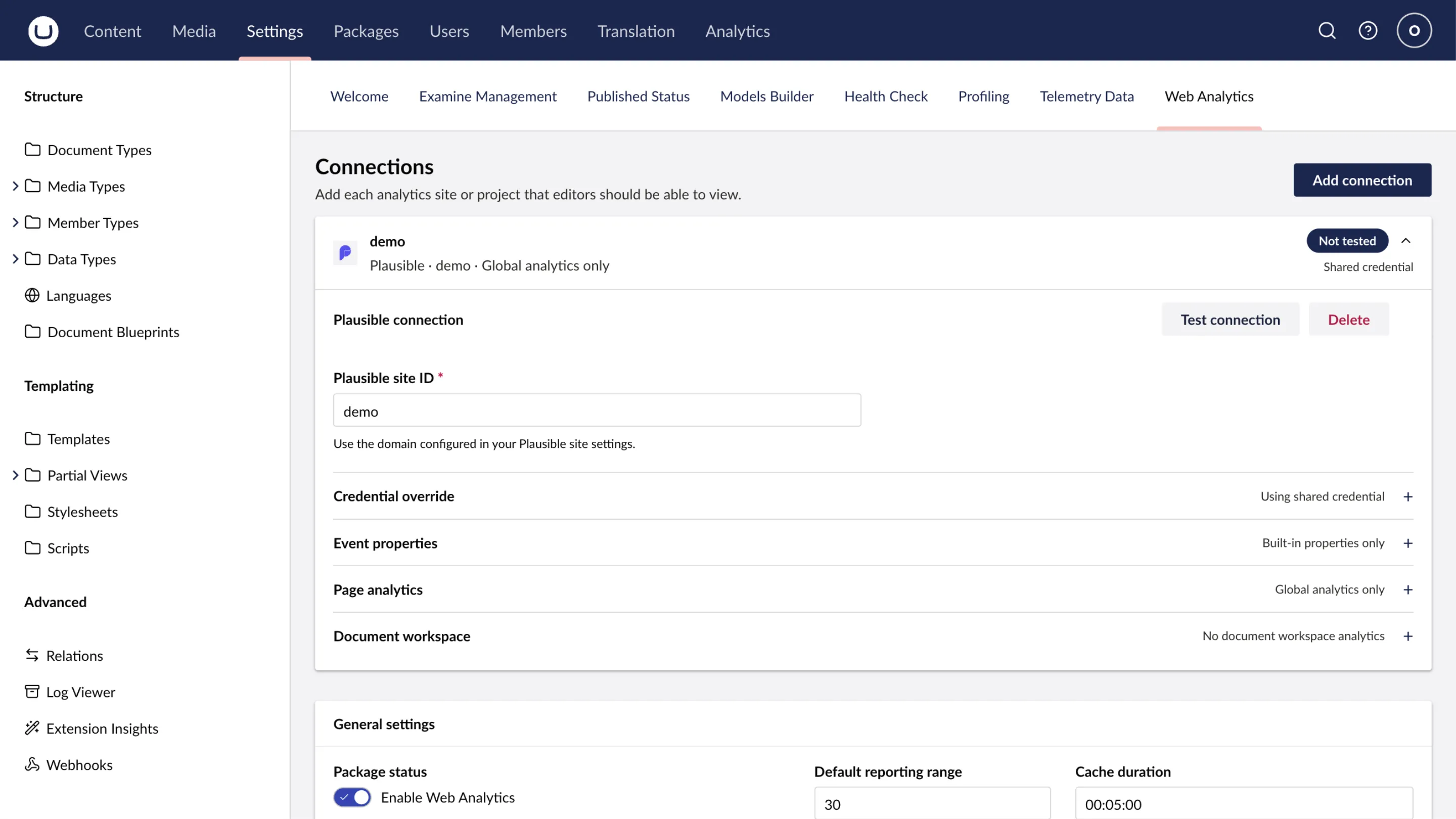
5. Test the connection
Select Test connection and review the credential status. The settings screen reports whether it detected a shared credential or a connection override; it does not display or store a token.
If the test fails, use troubleshooting. A provider may hide an unsupported panel; that is different from a failed connection.
6. Verify the Analytics dashboard
Open the global Analytics section. Check that totals and history load, then use a known date range with recorded production traffic.
Next step: document analytics
Optionally configure document analytics when editors should see a report while editing a mapped document.